Role Mapping Basics
Map each membership tier to a Discord role so PayBru can keep channel access aligned with who has paid, renewed, upgraded, downgraded, or ended access.
What Role Mapping Means
Role mapping links three things:
The tier the member joins, such as Follower, Supporter, or VIP.
The server role PayBru assigns when a member has active access to that tier.
If you connect more than one Discord server to a community, choose the appropriate mapped role for each server. A tier can have one mapped role per connected server.
Role Mapping Examples
Good for public channels, announcements, and community-wide onboarding.
Good for supporter chat, bonus posts, behind-the-scenes rooms, or priority community areas.
Good for closed channels, voice rooms, events, or higher-touch creator access.
| PayBru tier | Discord server | Mapped Discord role | Typical access |
|---|---|---|---|
| Free Follower | Main community server | Follower | Public channels, announcements |
| Supporter | Main community server | Supporter | Supporter-only chat and behind-the-scenes posts |
| VIP | Main community server | VIP | Supporter perks plus closed channels, voice rooms, or events |
You choose the names. PayBru links your tiers to roles that already exist in your Discord server.
Before You Map Roles
- Create the roles in Discord under Server Settings > Roles.
- Connect the Discord server to PayBru in Settings > Integrations. See Connecting Discord.
- Move the PayBru bot role above every mapped role it will manage.
- Create your PayBru tiers in Tiers in the Manage Portal.
Map a Tier
- Open the community in the Manage Portal.
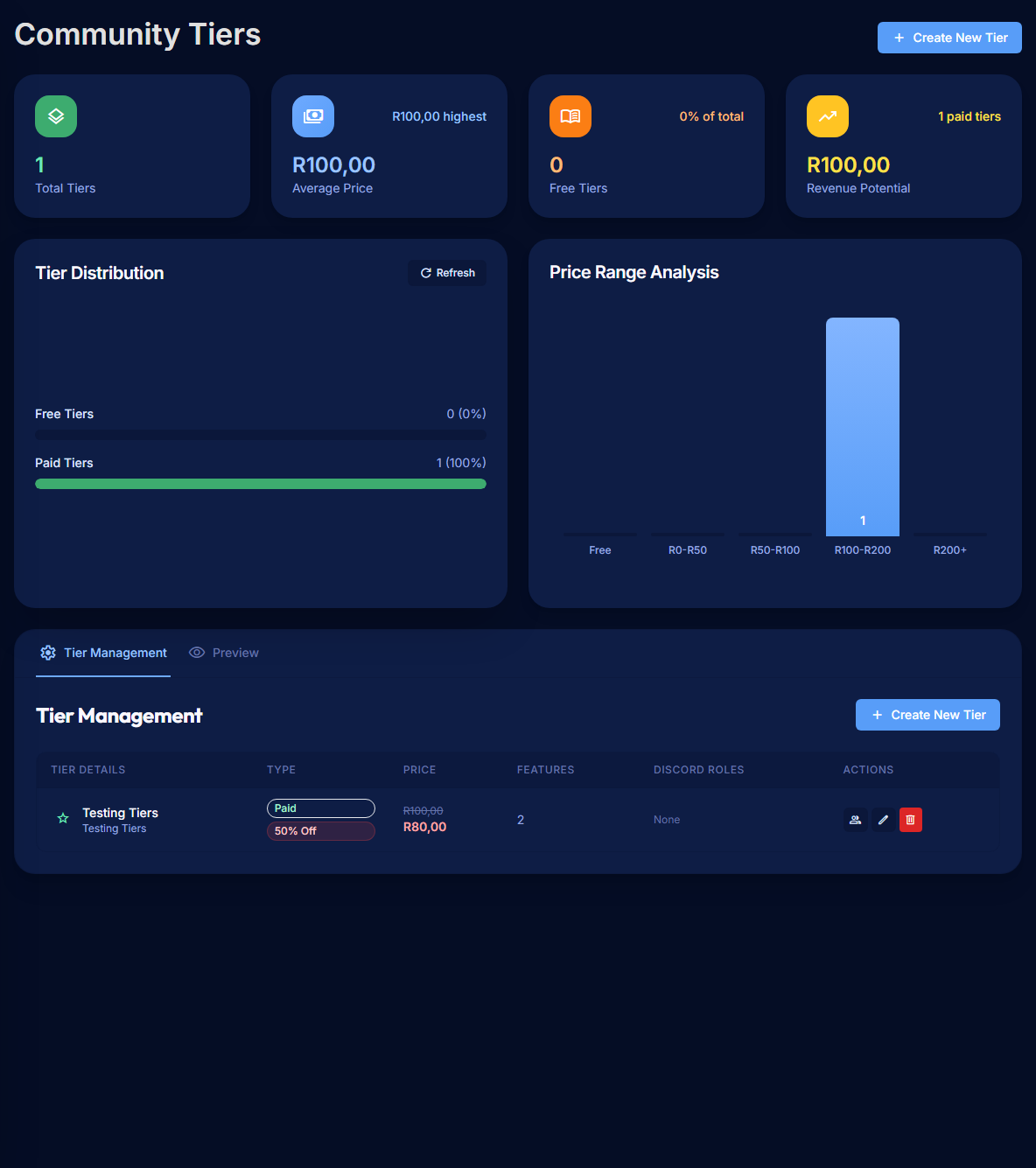
- Go to Tiers.
- Create a new tier or edit an existing one.
- Open the Discord step in the tier wizard.
- Enable role assignment for the connected server.
- Select the Discord role that should be assigned for that tier.
- Leave Auto-remove role enabled if the role should be removed when the member loses that tier.
- Save the tier.
Repeat for each tier that should grant Discord access.
What Happens Automatically
PayBru updates Discord roles when:
- A member joins a paid or free tier.
- A member changes tier by upgrading or downgrading.
- A renewal succeeds.
- A renewal fails and the grace period lapses. The role is removed when the membership moves to Ended.
- A member cancels and the paid period finishes.
The member must:
- Have linked Discord to their PayBru profile, and
- Be present in the connected Discord server.
If either is missing, PayBru keeps the expected role state and applies it once the member links Discord or joins the server.
Good Setup Tips
- Use one mapped role per tier per server unless two tiers truly need identical Discord access.
- Match role names to tier names so members and moderators can understand access at a glance.
- Order roles top-down by trust and access in Discord.
- Keep the PayBru bot role above every mapped role. This is the most common cause of missing roles.
- Reserve Owner/Admin/Mod roles for humans and keep them above the PayBru bot role so PayBru never manages them.
Map only the member-access roles
Common Mistakes
- Pointing a tier at @everyone. Use a dedicated Follower role instead.
- Mapping the same Discord role to a paid tier and a free tier when those members should see different channels.
- Creating a new Discord role but forgetting to refresh roles in PayBru before selecting it.
- Moving the PayBru bot below a mapped role during a Discord cleanup.
- Deleting or renaming a Discord role and not re-checking the tier mapping.
Test the Mapping
- Create a free or low-cost test tier if you do not already have one.
- Map it to a test Discord role near the bottom of the role list.
- Join from a separate Discord and PayBru account, or ask a trusted moderator to test.
- Confirm the role appears in Discord within a minute or two.
- Cancel or end the test membership and confirm the role disappears after access ends.
If anything goes wrong, see Common Discord Sync Issues.