Social and Stream Links
Add only links you actively maintain, and keep the Discord invite permanent if your community depends on Discord access.
Use social and stream links to help members find a creator outside PayBru — on their website, social profiles, or live-streaming channel.
Where Links Appear
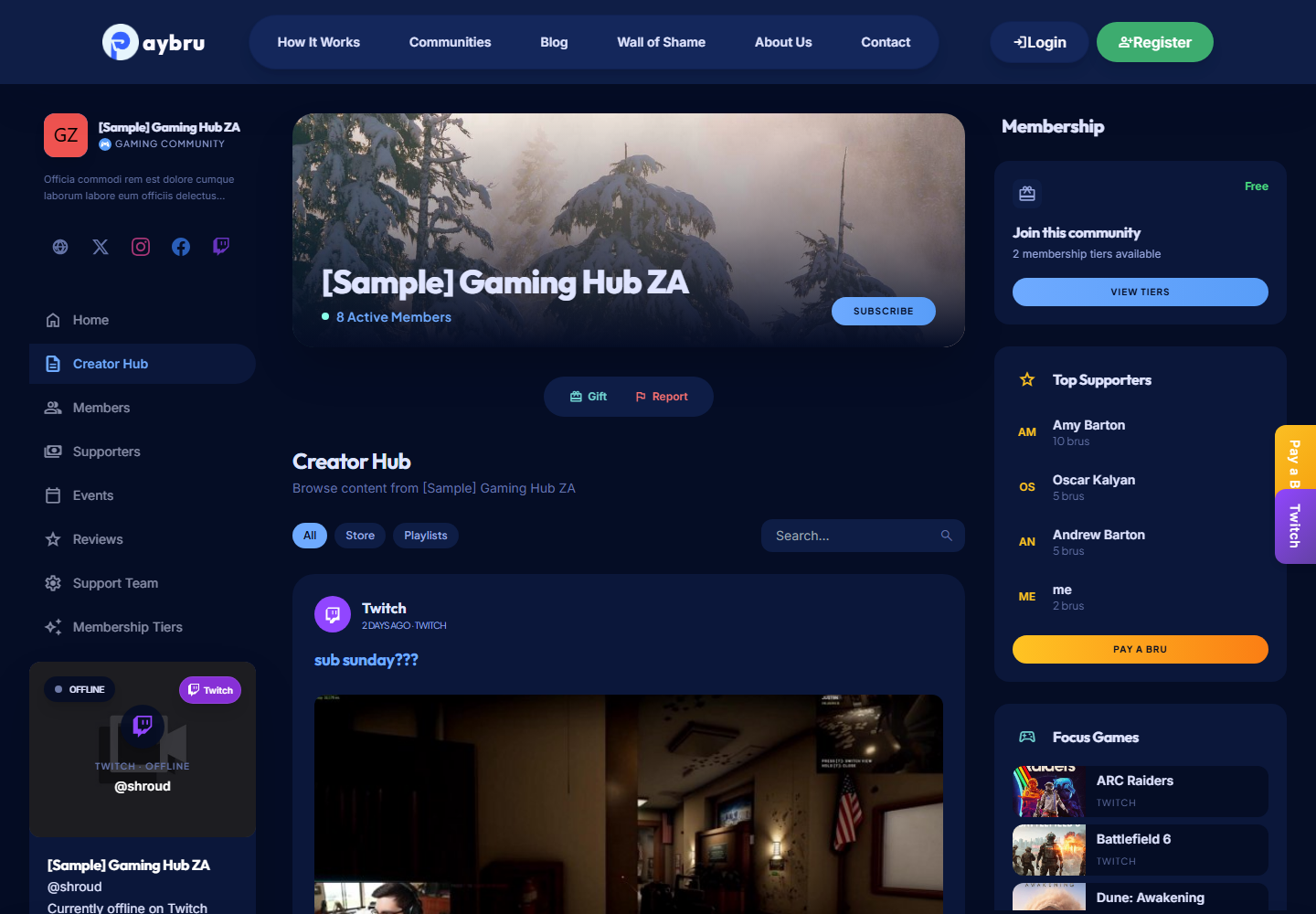
Public creator links show up on:
- The community page.
- The creator's public profile page.
- Stream and creator hub areas, when supported sources are enabled.
Supported Link Types
PayBru can display all the major South African creator surfaces:
Supported creator platforms


- Website
- Twitter / X
- YouTube
- TikTok
- Twitch
- Kick
- Mixcloud
- Spotify
- Threads
- GitHub
- Discord invite
Add only the links you actively use and want members to visit. Empty fields don't show on the public page.
Add Public Creator Links
- Open the Manage Portal for the community.
- Go to Settings > Social Links.
- Add the links you want to show publicly.
- Save the community settings.
- Open the public community page and confirm the links appear and work.
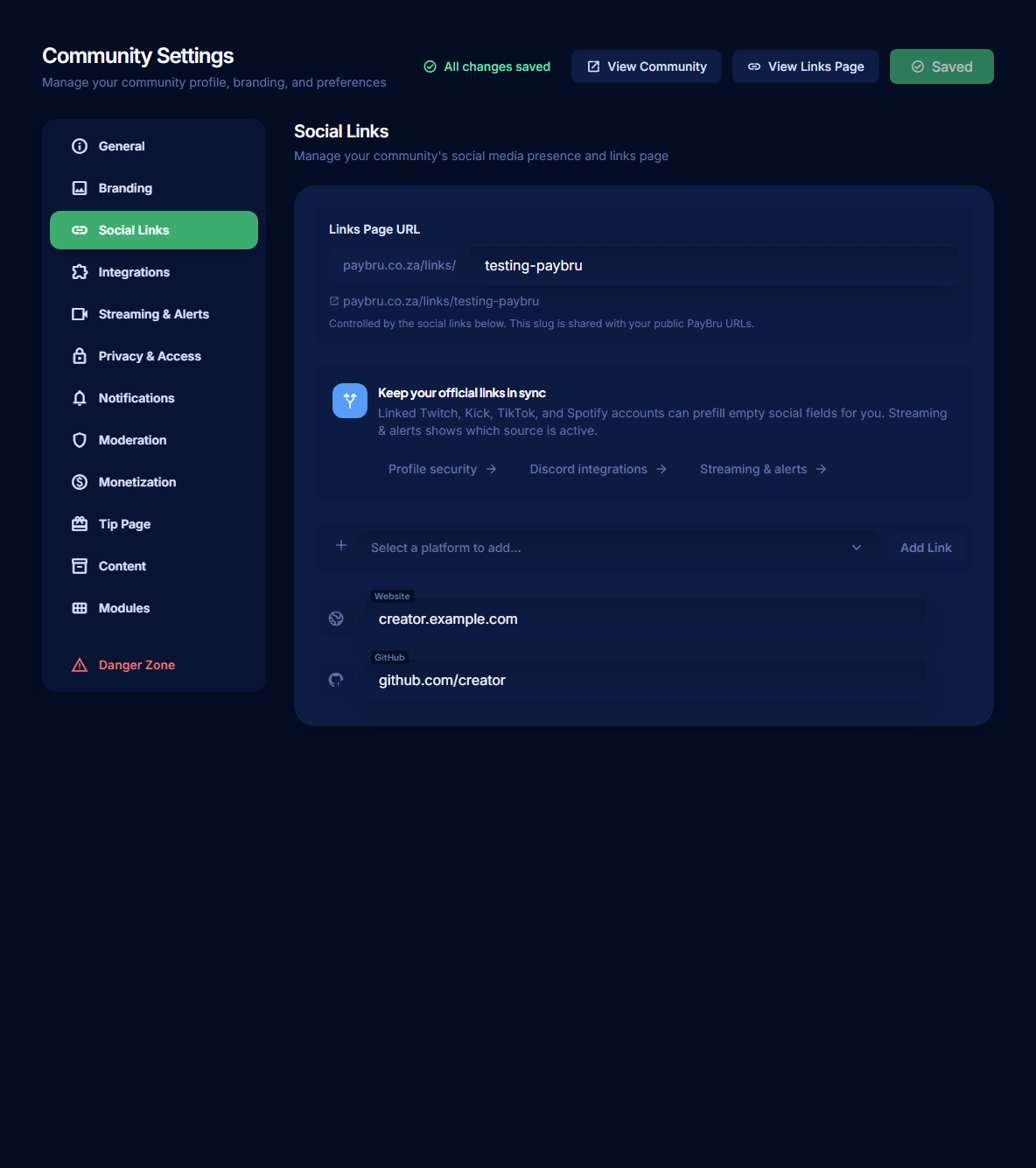
If your community uses Discord, double-check the Discord invite field. Use a permanent invite (not one that expires), so members can join even if they discover your page weeks later.
Connect Account Services
Some platforms can also be connected to your own PayBru account as a sign-in or notification provider, separate from public social links.
- Open the Client Portal.
- Go to Resources > My Profile > Security.
- Open Connected Accounts.
- Connect the provider you want to link.
- Refresh the page if the provider opens in a popup.
Connecting Discord on your profile is what lets PayBru grant your tier role automatically in the creator's server.
Stream Visibility
When stream details are configured, PayBru can show:
- A live indicator on community cards while a stream is live.
- The community's currently-live stream in the Live Now section on the home page.
- An embedded player on the community page sidebar with the title, category, viewer count, and live duration.
If a stream doesn't appear:
- Confirm the correct profile or channel link is saved on the community.
- Confirm the community page is public.
- Refresh the public community page.
- Check that the underlying service account is actually live and reachable.