Browser Source Alerts
Keep the browser source URL private and test the alert look before going live.
The PayBru browser source is a URL you add to your streaming software so on-screen alerts pop up whenever a community event happens. It works with OBS, Streamlabs, Streamlabs Desktop, OBS.Live, vMix, XSplit, or any other software that supports the standard "Browser Source" input.
Works alongside the streaming platforms PayBru can show in your community settings


What Alerts You Can Show
A single PayBru browser source can show three types of on-stream alerts:
| Alert | Triggered by | Typical detail shown |
|---|---|---|
| Tip alerts | A member sends a Pay-a-Bru tip | Tipper name, ZAR amount, the message they left |
| Membership alerts | A member subscribes, renews, upgrades, or hits a milestone | Member name, tier, duration, months active |
| Gift alerts | Someone gifts a membership to another member | Gifter, recipient, tier, duration in months |
You can turn each alert type on or off independently, so a stream that only wants tip pops doesn't have to show membership pop-ups too.
Open Browser Source Settings
- Open the Manage Portal for your community.
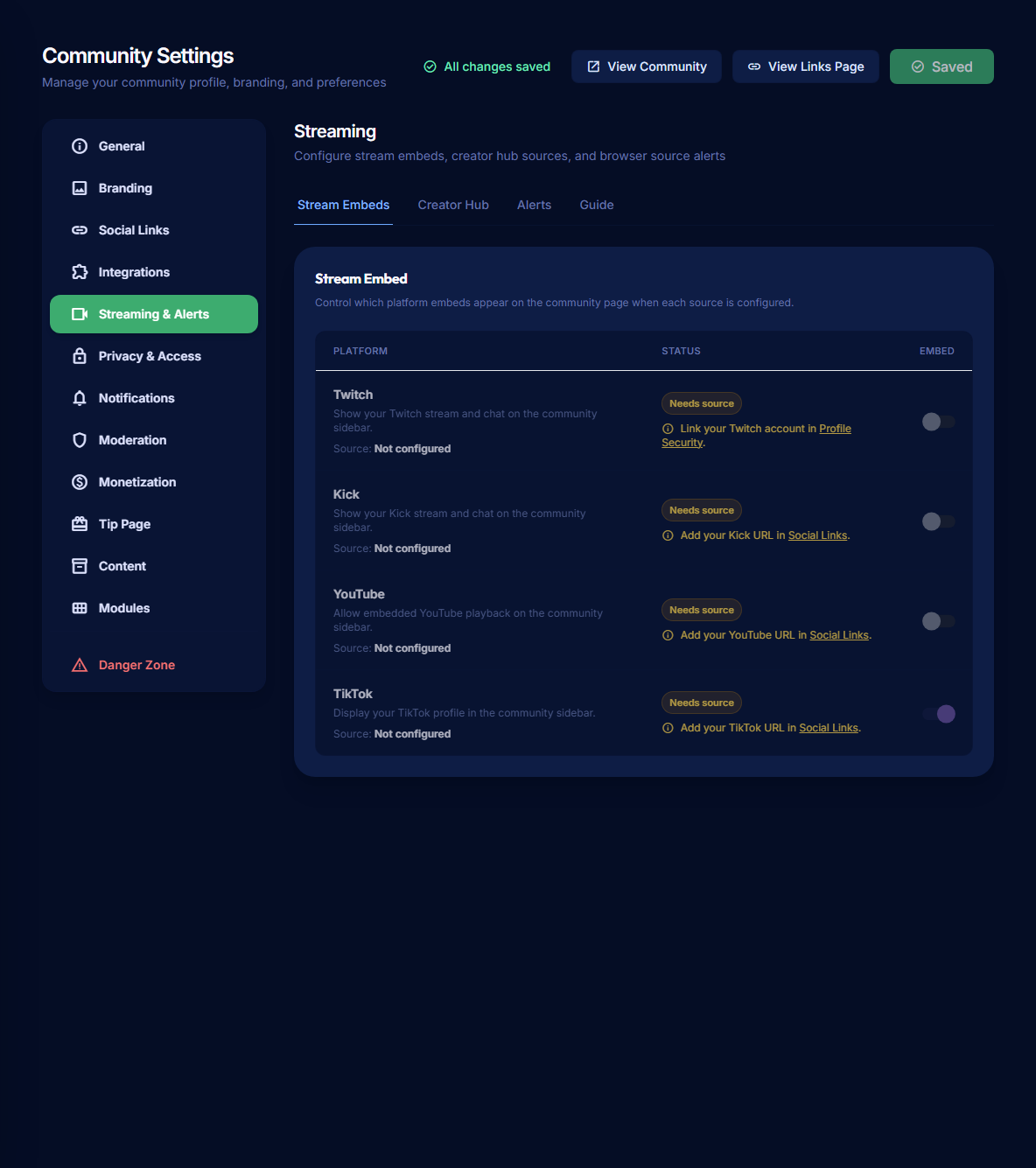
- Go to Settings > Streaming & Alerts.
- Open the Alerts tab (you may also see this listed as Browser Source).
Create a Browser Source
- Select Create browser source (or open an existing one).
- Give it a name you'll recognise — e.g. "Main stream — Twitch".
- Choose which alert types it should show: Tips, Memberships, Gifts (any combination).
- Save. PayBru generates a unique URL with a private token.
- Copy the browser source URL.
The URL contains a token that authorises your alerts. Anyone with this link can preview your alert overlay. If it ever leaks, return to this page and use Regenerate token to invalidate the old link.
Customise the Alert Look and Behaviour
Each browser source has its own settings. Common options:
- Position — top-left, top-right, bottom-centre, and so on.
- Animation — slide-in, fade-in, pop-in.
- Display duration — how long each alert stays on screen.
- Sound — toggle on/off, upload your own custom sound, or use the default.
- Text-to-speech — read tip messages aloud, with a choice of voice.
- Minimum tip amount — hide alerts for very small tips if you want to.
- Per-field toggles — show or hide the tipper's name, the amount, the message, the gift recipient, the tier name, and so on.
- Custom CSS — for advanced users who want to fully restyle the overlay.
- Test mode — preview alerts without a real payment going through.
Add the URL to OBS or Streamlabs
In OBS Studio:
- In Sources, click + and choose Browser.
- Name it (e.g. "PayBru alerts") and click OK.
- Paste the PayBru browser source URL into the URL field.
- Set the Width and Height to match your scene (1920×1080 is a safe default for full-screen scenes).
- Leave Control audio via OBS ticked if you want OBS to handle the alert sound through your normal audio mixer.
- Click OK.
In Streamlabs Desktop the steps are nearly identical — add a Browser Source in your scene and paste the URL.
For OBS-specific help, see the OBS Browser Source documentation.
Test It Before You Go Live
- In PayBru, use the Send test alert button (or enable Test mode) on the browser source.
- Check OBS shows the alert in your preview.
- Confirm the size and position look good in your scene.
- Turn test mode off before you go live so real alerts come through correctly.
Use One Source per Stream Setup
If you stream from more than one PC, scene collection, or in collaborations with other creators, create a separate browser source per setup. That way you can:
- Use different positions or sizes per scene.
- Mute alert sounds on a guest's stream while keeping them on yours.
- Regenerate a single URL if a token leaks without breaking your other setups.
Edit or Delete a Browser Source
- Go back to Settings > Streaming & Alerts > Alerts.
- Open the source to update the layout, alert types, or token.
- Use Delete to remove a source you no longer use — the URL stops working immediately.
Troubleshooting
- No alert appears in OBS — confirm the source is set to active, the alert type is enabled, and OBS is connected to the internet.
- Sound doesn't play — check OBS hasn't muted the source and that Play alert sound is on in PayBru.
- Member name shows but tier name doesn't — verify the per-field display toggles in the browser source settings.
- Alerts stop working after sharing the URL — regenerate the token from the browser source page and paste the new URL into OBS.