Setting Up Memberships
A strong tier has a clear price, clear benefits, a simple renewal choice, and a Discord mapped role only when the community uses Discord access.
Use Tiers in the Manage Portal to design the membership levels your community will offer.
Journey in This Video
- What the video shows: open Tiers, create a tier, review price and duration fields, complete Features, and check the Discord role step.
- Who it is for: creators setting up paid or free membership levels.
- Where to start: open the community Manage Portal and select Tiers.
- What to do next: publish the tier, check it on the public community page, and map Discord roles only if the community uses Discord access.
Before You Start
Cheaper tiers should feel meaningfully different from premium ones.
Check your public name, logo, description, and banner before launching paid tiers.
If you'll use Discord, create the matching roles in your server before mapping them. See Role Mapping Basics.
Decide whether you will offer monthly only, longer prepaid durations, or duration discounts.
Create a Tier
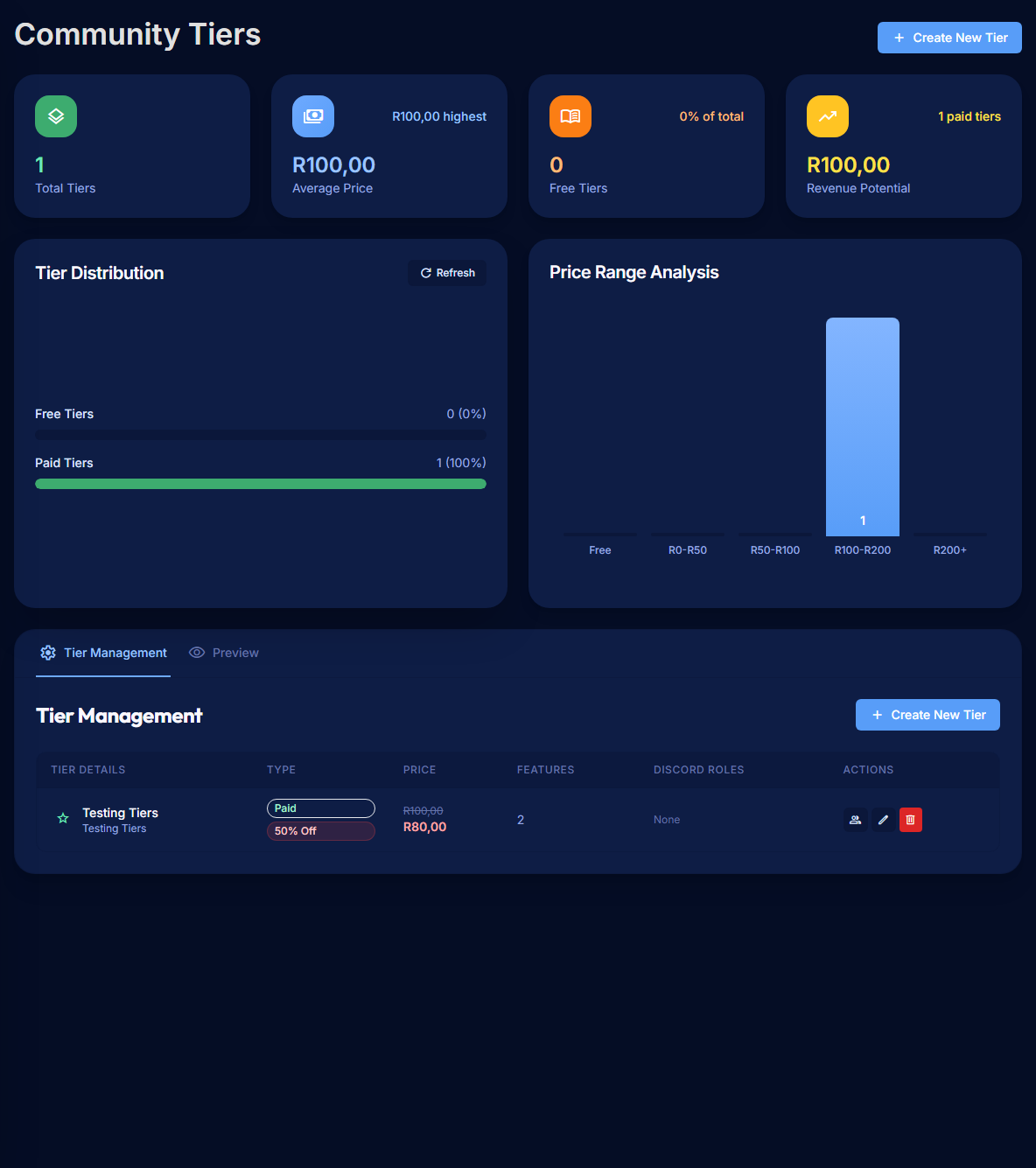
- Open the Manage Portal for your community.
- Select Tiers.
- Select Create Tier.
- Step through the wizard:
- Details — name, short description, price in ZAR, duration options, and optional promotional pricing.
- Features — the benefits members get.
- Discord — require Discord before joining and map to a Discord role (optional).
- Review — final check.
- Publish the tier.
Set the Price
- Prices are in ZAR.
- Choose round, easy-to-read amounts (e.g. R49, R99, R249).
- Keep your most popular tier in the middle — your audience will gravitate to it as the "default choice".
- Free tiers are allowed and great as a "lobby" — members can sample your community before paying.
Remember: members see the headline price. PayBru's 5% platform fee and Paystack's gateway fee are deducted from your earnings, not added on top of the member's charge. South African local card payments currently use Paystack's 2.9% + R1.00 pricing, excluding VAT; other Paystack methods can differ. See Billing Basics for Creators.
Offer Prepaid Durations
PayBru supports prepaid durations from 1 to 12 months, plus any custom duration you enable.
Enable the durations you want to sell:
- 1 month — standard monthly billing.
- 3, 6, or 12 months — one upfront charge, then renews at the end of that block.
- Custom — set a different length where it makes sense for your community.
You can offer a duration discount on longer plans (e.g. "Save 15% with the 12-month plan"). PayBru shows the discount on the tier card and applies it at checkout.
Renewals on longer durations behave the same way as monthly — the saved card is charged at the end of the block.
Add Benefits
Write benefits in plain language and lead with what members care about most.
- Specific beats vague: "Weekly behind-the-scenes posts" lands better than "Exclusive content."
- Concrete beats hypothetical: only promise what you can actually deliver every cycle.
- Keep the list short — five to seven bullets is plenty.
If a benefit is tied to a Discord channel, an event series, or a store discount, say so.
Connect Discord Roles
If your community uses Discord:
- In the tier wizard, open the Discord step.
- Select the Discord role to assign for that tier.
- Save the tier.
PayBru applies the role automatically when a member joins or renews this tier, and removes it when the membership ends. Make sure the PayBru bot role sits above every tier role in your Discord server's role list — see Connecting Discord.
Edit or Remove a Tier
- Edit a tier when benefits change, pricing changes, or you want to update the Discord mapping.
- Existing members keep the price they signed up at until they change tier or resubscribe.
- Delete a tier only when no active members are still on it — otherwise change it to "unlisted" so it stays available to current members but isn't advertised publicly.
Promote the Tier
Once the tier is published:
- Open the public community page and check the tier card from a member's point of view.
- Share the community link in your usual channels (Discord, socials, stream pages).
- Watch your Insights tab in the first few days to see which tiers are actually converting.