Getting Support and Refunds
PayBru supports full and partial refunds. Eligibility depends on the creator's policy and how recently the charge happened.
Use Get Help when PayBru support needs to investigate. Use Messages when you only need to talk to the creator directly.
When to Use Which
| Scenario | Tool |
|---|---|
| Payment failed or unexpected charge | Support > Get Help |
| Can't access content or Discord role after troubleshooting | Support > Get Help |
| Refund request on a specific transaction | Support > Get Help |
| Bug, glitch, or error you can't get past | Support > Get Help |
| "When's your next stream?" or community-specific question | Messages with the creator |
| Feedback on the content or community | Messages with the creator |
For Discord-specific role-not-applying issues, work through the Discord Troubleshooting Access checklist first — most are recoverable without a ticket.
Open Support
- Sign in to PayBru.
- Open the Client Portal.
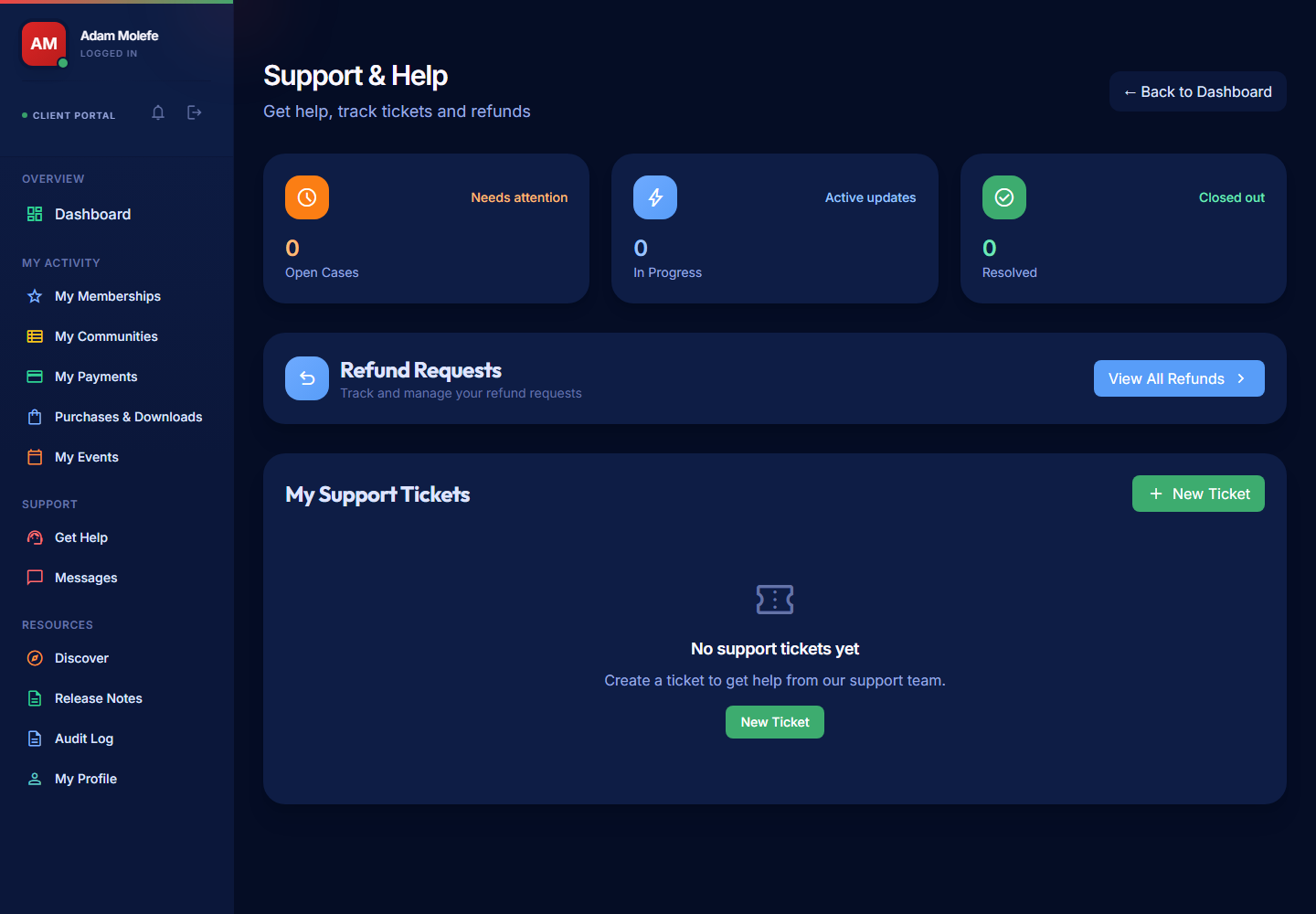
- Go to Support > Get Help.
The page title is Support & Help.
Create a Support Ticket
- Select Create Ticket.
- Add a clear Subject that names the problem.
- Choose a Category so the right team picks it up.
- Add a detailed Description.
- Submit.
Include:
- The community name the issue relates to.
- A payment reference, order ID, or event name where one applies.
- Screenshots of error messages or unexpected behaviour.
- What you've already tried (so you don't get the same fix suggested back).
Track Ticket Replies
- Open the ticket from the Support list to read replies.
- Add a comment when you need to share more detail.
- The status column tells you whether the team is waiting on you or working on it.
Request a Refund
PayBru supports both full and partial refunds.
- Go to My Activity > My Payments.
- Open the completed payment.
- Select Request Refund.
- Choose Full Refund or Partial Refund.
- Add a reason and any supporting details.
- Choose the refund method (usually the original payment method).
- Submit.
Refund requests are available only for eligible completed payments.
Track Refund Requests
Open Support > Get Help, then select View All Refunds.
Typical statuses you'll see:
| Status | What it means |
|---|---|
| Pending Review | Submitted, waiting for the creator (or PayBru) to look at it. |
| Under Review | Being evaluated. |
| Pending Approval | Final approval pending. |
| Approved | Approved — the refund will move to Processing shortly. |
| Processing | The refund is with Paystack. |
| Completed | Funds returned. Your bank usually takes a few business days to credit the original card. |
| Rejected | Refund not granted. The status shows the reason. |
Once a refund is Completed, the bank leg is the slowest part — it can take several business days to show on your statement.
When to Contact the Creator First
Contact the creator through Messages when the issue is about:
- Community-specific instructions (where to find a download, how an event works).
- Product fulfilment (where's my physical merch?).
- Event details (the link doesn't work, what's the agenda?).
- Tier perks that may not have been delivered yet.
Use Support > Get Help for anything that needs PayBru to look at your account.