Using the Client Portal
Members use it to manage memberships and payments. Creators use it to open My Communities before entering the Manage Portal.
The Client Portal is the signed-in area you reach after logging in. It is used by members, creators, and moderators.
Journey in This Video
- What the video shows: open the Client Portal, use My Activity and Resources, and see where creators start a community.
- Who it is for: members, creators, and moderators who need the signed-in starting point.
- Where to start: sign in, open Dashboard, and use the Client Portal sidebar.
- What to do next: members go to My Memberships or My Payments; creators open My Communities and then the Manage Portal.
Open the Client Portal
- Sign in to PayBru.
- Open Dashboard.
- Use the left sidebar to move between your main tools.
On mobile, tap the menu button in the top-left corner to open the same sidebar.
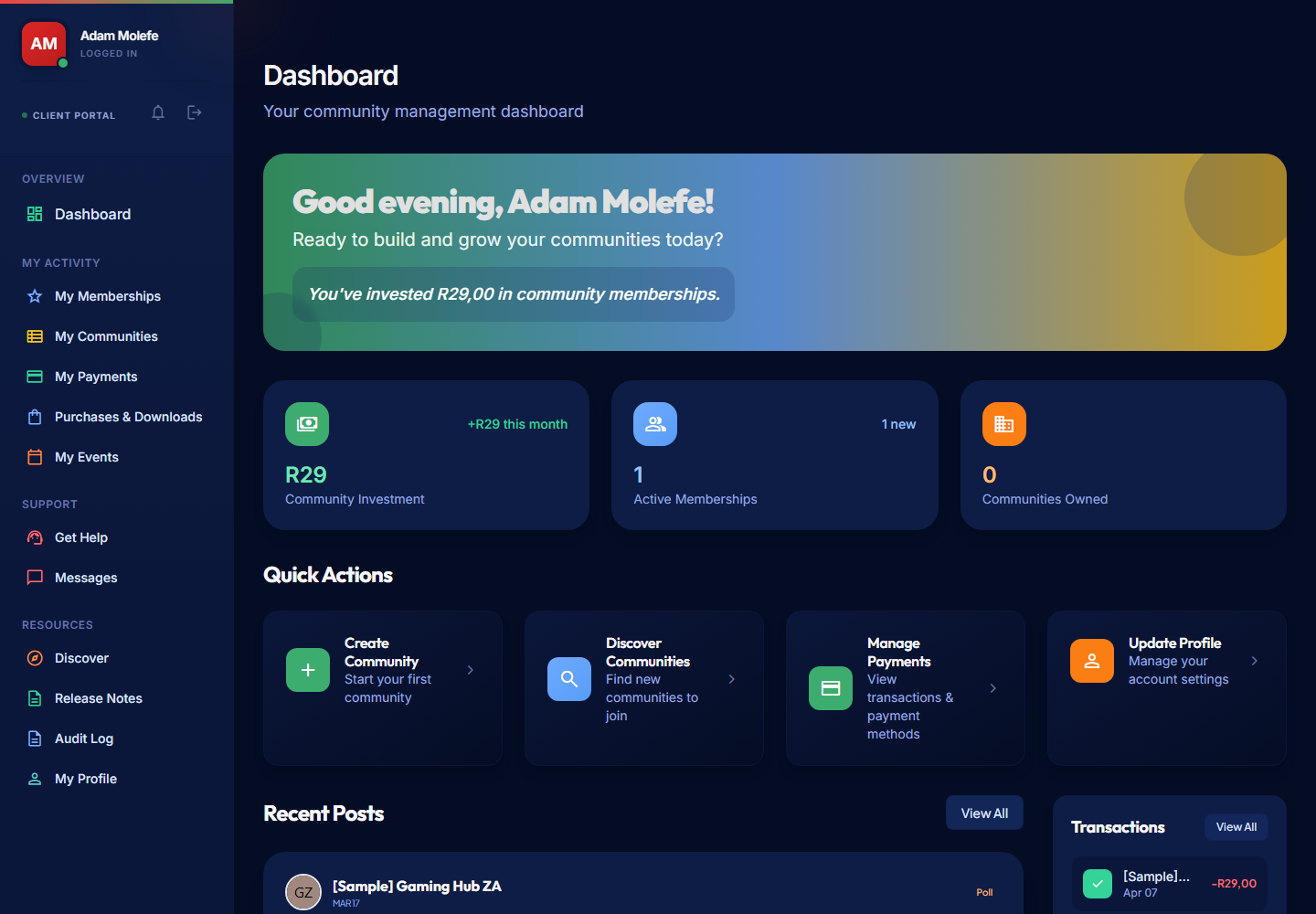
Overview
Use Dashboard for a quick summary of your PayBru account.
You can see:
- Community investment
- Active memberships
- Communities owned
- Recent posts from communities you have joined
- Recent transactions
- Recent purchases
My Activity
Use My Activity for the things you do most often.
View communities you have joined, manage access, and review membership status.
Create a community or open a community you own before entering the Manage Portal.
Review payment records, statuses, receipts, invoices, and statements.
Find store orders and downloadable products bought from creators.
View events connected to communities you follow or support.
Open communities where you have moderator access. This appears only for moderators.
Support
Use Get Help when you need support from PayBru.
Use Messages for direct conversations with creators or members.
Resources
Use Resources for account tools and platform updates.
| Menu item | Use it for |
|---|---|
| Discover | Find communities from inside the portal. |
| Release Notes | See recent PayBru product updates. |
| Audit Log | Review account and community activity history. |
| My Profile | Update your profile, notification preferences, security settings, payment details, and referrals. |
Common tasks
| Task | Where to go |
|---|---|
| Join a community | Resources > Discover or open a creator's shared PayBru link. |
| Manage a membership | My Activity > My Memberships. |
| View a payment | My Activity > My Payments. |
| Download a purchase | My Activity > Purchases & Downloads. |
| Create a community | My Activity > My Communities > Create Community. |
| Update your profile | Resources > My Profile. |
| Contact support | Support > Get Help. |
Related Guides
- Managing Your Profile
- Browsing Community Pages
- Purchases and Downloads
- Attending Events
- Messaging Creators
- Getting Support and Refunds
If you own a community, open My Communities, then select Manage on the community card to enter the creator Manage Portal.